Running Windows “Live” is sometimes required (BIOS/Firmware updates, rescue HDD). Of course, there are a few software options for doing that, but you must pay or the free version has limitations.
You can easily achieve this, for free, with a few tools from Windows itself.
Prerequisites:
• USB Stick (16GB+)
• Windows 10 PC
• Windows 10 install disk/ISO
1.
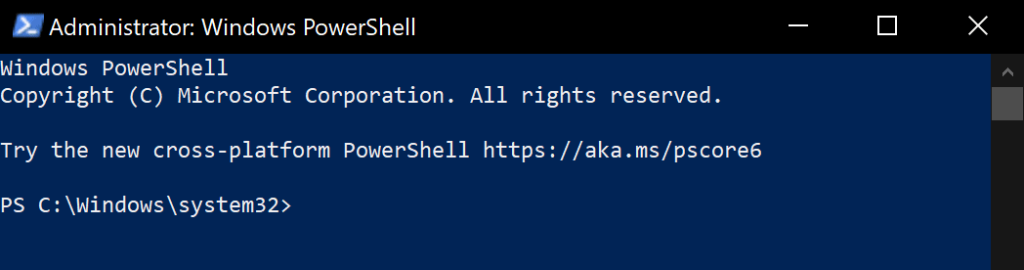
Press + X, and select “Windows PowerShell (Admin)”
2. You will use “DISKPART” to prepare the USB Stick, but pay attention when selecting the disk because it will destroy all partitions on the selected disk. After that we will create two primary partitions, one of 100MB, FAT32, active (the BOOT partition), and the second one, NTFS, using the rest of the space on the stick (it will contain the Windows files):
PS C:\Windows\system32> DISKPART

Microsoft DiskPart version 10.0.19041.610
Copyright (C) Microsoft Corporation.
On computer: Test-PC

DISKPART> list disk
  Disk ###  Status         Size     Free     Dyn  Gpt
  --------  -------------  -------  -------  ---  ---
  Disk 0    Online          465 GB      0 B        *
  Disk 1    Online           14 GB      0 B

DISKPART> select disk 1
 Disk 1 is now the selected disk.

DISKPART> clean
 DiskPart succeeded in cleaning the disk.

DISKPART> convert MBR
 DiskPart successfully converted the selected disk to MBR format.

DISKPART> create partition primary size=100
 DiskPart succeeded in creating the specified partition.

DISKPART> format fs=FAT32 quick
  100 percent completed
 DiskPart successfully formatted the volume.

DISKPART> active
 DiskPart marked the current partition as active.

DISKPART> assign letter=X
 DiskPart successfully assigned the drive letter or mount point.

DISKPART> create partition primary
 DiskPart succeeded in creating the specified partition.

DISKPART> format fs=NTFS quick
  100 percent completed
 DiskPart successfully formatted the volume.

DISKPART> assign letter=Y
 DiskPart successfully assigned the drive letter or mount point.

DISKPART> exit
 Leaving DiskPart...
- I’ve assigned drive letters X: and Y: for the two newly created partitions, X: for the boot partition, and Y: for the partition containing Windows files (you can choose any letters you like, only pay attention to which is which, you will need this in the following steps).
3. Insert your Windows 10 Install Disk or mount the install ISO image and identify the Windows 10 distribution you want to use for your live stick. For this, we will use “DISM” and point to the installation image file (in my case “E:\sources\install.wim”):
PS C:\Windows\system32> DISM /Get-ImageInfo /imagefile:E:\sources\install.wim

Deployment Image Servicing and Management tool
Version: 10.0.19041.746

Details for image : E:\sources\install.wim

Index : 1
Name : Windows 10 Home
Description : Windows 10 Home
Size : 15.489.142.996 bytes

Index : 2
Name : Windows 10 Home N
Description : Windows 10 Home N
Size : 14.716.766.977 bytes

Index : 3
Name : Windows 10 Home Single Language
Description : Windows 10 Home Single Language
Size : 15.470.244.213 bytes

Index : 4
Name : Windows 10 Education
Description : Windows 10 Education
Size : 15.722.347.443 bytes

Index : 5
Name : Windows 10 Education N
Description : Windows 10 Education N
Size : 14.953.374.712 bytes

Index : 6
Name : Windows 10 Pro
Description : Windows 10 Pro
Size : 15.720.710.878 bytes

Index : 7
Name : Windows 10 Pro N
Description : Windows 10 Pro N
Size : 14.955.666.348 bytes

Index : 8
Name : Windows 10 Pro Education
Description : Windows 10 Pro Education
Size : 15.722.285.861 bytes

Index : 9
Name : Windows 10 Pro Education N
Description : Windows 10 Pro Education N
Size : 14.953.312.230 bytes

Index : 10
Name : Windows 10 Pro for Workstations
Description : Windows 10 Pro for Workstations
Size : 15.722.316.652 bytes

Index : 11
Name : Windows 10 Pro N for Workstations
Description : Windows 10 Pro N for Workstations
Size : 14.953.343.471 bytes

The operation completed successfully.
4.
Write the selected Windows 10 image (in this example: 6) on the second partition, “Y:“
PS C:\Windows\system32> DISM /Apply-Image /ImageFile:E:\sources\install.wim /Index:6 /ApplyDir:Y:\ /compact

Deployment Image Servicing and Management tool
Version: 10.0.19041.746

Applying image
[==========================100.0%==========================]
The operation completed successfully.
5.
Prepare the BOOT partition on “X:“, pointing to the newly copied files in “Y:“
C:\Windows\system32>BCDBOOT Y:\Windows /s X: /f ALL
Boot files successfully created.
6.
Now the “Windows 10 Live Stick” should be ready, reboot your PC and select it as the first boot device!
